BoingIconBar has been updated with the help of AI. I’ve added many new features to BoingIconBar and fixed several issues; among other things, you can now move windows and the Shell over it without any problems.
New Features:
- You can drag program icons onto the bar; they will be automatically saved
- Remove icons from the bar by simply dragging them off the bar with the mouse; you’ll receive a confirmation message
- The bar menu is transparent, but you can change the font, size, and disable transparency
- The bar can be aligned to the left, right, or center
- The Preferences GUI can be accessed via the preset icon on all submenus
- Localization files for a large number of countries (in progress)
- The Preferences GUI has gained many new features; previously, adding programs required only partially manual input,
but now it includes many new automated functions.
- The Preferences GUI now has two new tabs: Options (Bar Group and Glass Group) and Fonts and Skins
Bar Group:
- Space between icons (SPACE): pixels between icons, from 0 to 50. Default 5.
- Alignment (ALIGN): where the bar appears on the screen: Center, Left, or Right.
- Static (STATIC): 0 = the bar hides when inactive and reappears when you move the mouse over the bottom edge. From 1 to 30 = always visible, with a brief delay before it appears.
- Show icon names (NAMES): displays the name below each icon.
- Auto remap icons (AUTOREMAP): adapts icon colors to match the screen’s colors, useful with palette-based screens.
- No bar images (TRANSPARENT): does not draw the toolbar’s background images (Images:bibgfx); the icons sit directly on the background.
- Refuse dropped icons (NODROP): rejects icons dragged from Wanderer onto the toolbar.
- Keep in front (FRONT): keeps the bar in front of windows instead of behind them. With Bar glass set above 0, it is always in front.
- Static gl**** no live (NOLIVE): when the bar has a glass effect, this prevents redrawing when you move windows beneath it (no flickering).
Glass and Fonts:
- Menu glass (MENUGLASS): Opacity of the dark glass in the menus, from 0 to 100. 0 = opaque menu. Default 70.
- Bar glass (BARGLASS): Opacity of the glass in the bar, from 0 to 100. 0 = normal bar. Requires a true-color screen.
- Glass Color (GLASSCOLOR): Glass color as RRGGBB in hexadecimal. Default 080C14. Applies to both menus and the bar.
- Menu Font (SYSFONT): Menu font. Blank = screen’s system font.
- Menu Font Size (SYSFONTSIZE): Menu font size. Works only if you have selected a Menu font. 0 = 8.
- Label font (LABELFONT): font for the labels under the icons. Default: arial.font.
- Label font size (FONTSIZE): label size. Default: 9. To see the effect, set “Show icon names” to “Yes.”
Apply the options with Save or Use (no restart required). Label font sizes are only visible when “Show icon names” is set to Yes. Hover over the gadget for help
Skin:
- Left Image: Select the left side image for the background
- Middle Image: Select the background
- Right Image: Select the right side image for the background
- Apply Image: Path to images in SYS:System/BoingIconBar/Skins (Left, Middle, and Right)
are copied to Images:bibgfx/ (left, middle, right). The bar reloads them immediately.
Save and Use copy the selected images. They will not be displayed when ‘Bar Glass’ is set to 0.
 AMIGASYSTEMDistro Maintainer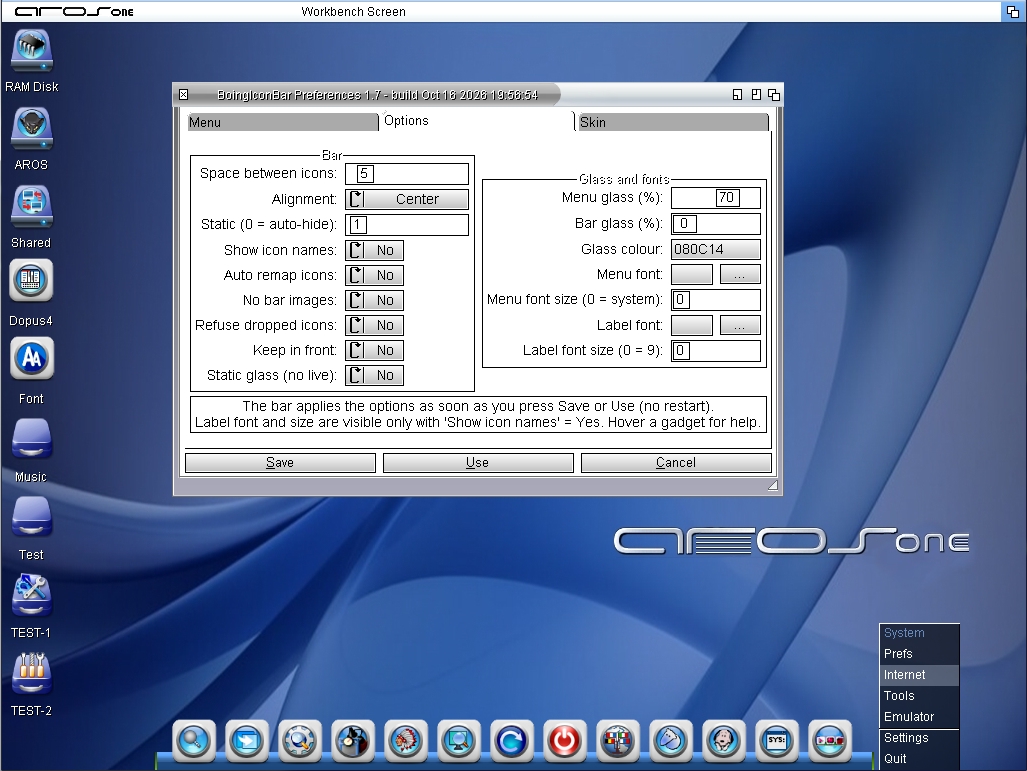

 olivier2222Junior Member